 Grade Integrity
How it works
From Classroom to a clear report in a few minutes.
Here's everything Grade Integrity does with an assignment, step by step, and what it can and can't tell you.
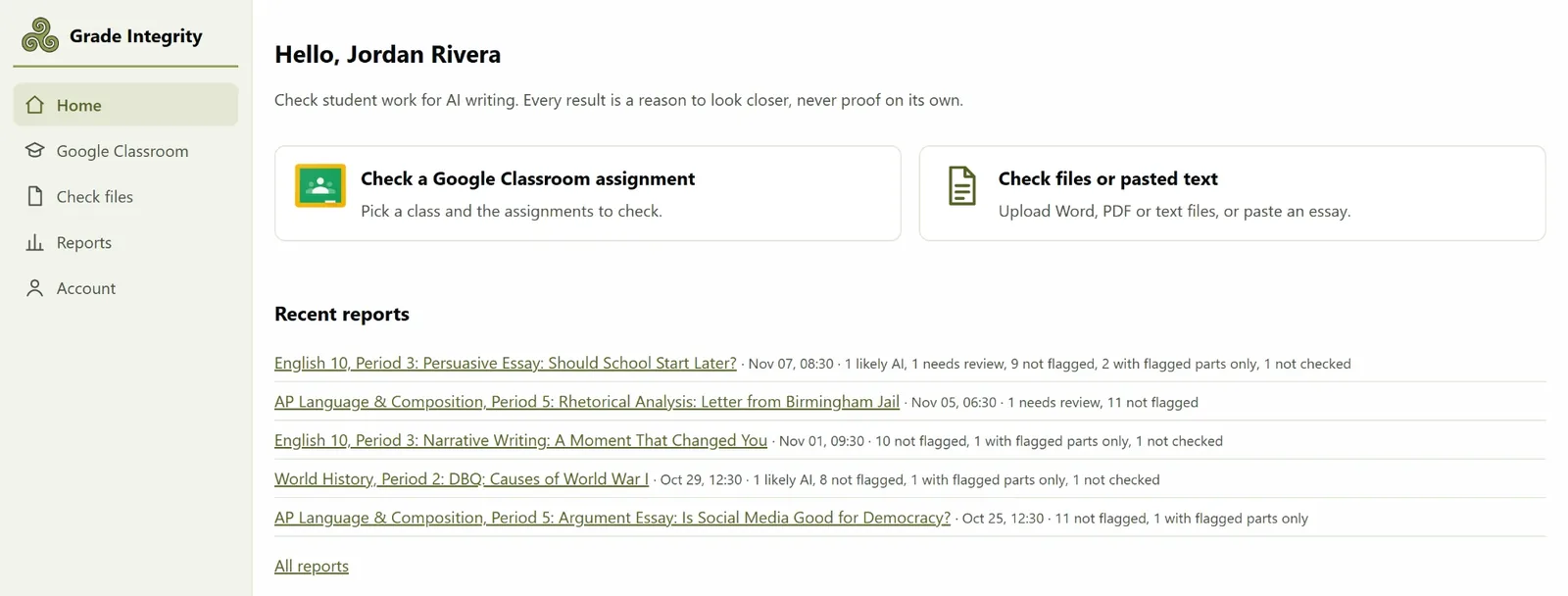
Step 1
Sign in and connect Google Classroom.
Sign in with your school Google account and Classroom is connected at the same time. Prefer a password? Create an account with your email and connect Classroom later from Account.
- Read-only: your classes, assignments and submissions, rosters for names, and the Google Docs, Slides and Sheets students turned in
- Uploaded Word and PDF files are opened only when you choose them in Google's file picker
- It can't change, grade, return or delete anything
- The connection lives in memory for about an hour, so you simply reconnect when it runs out
Step 2
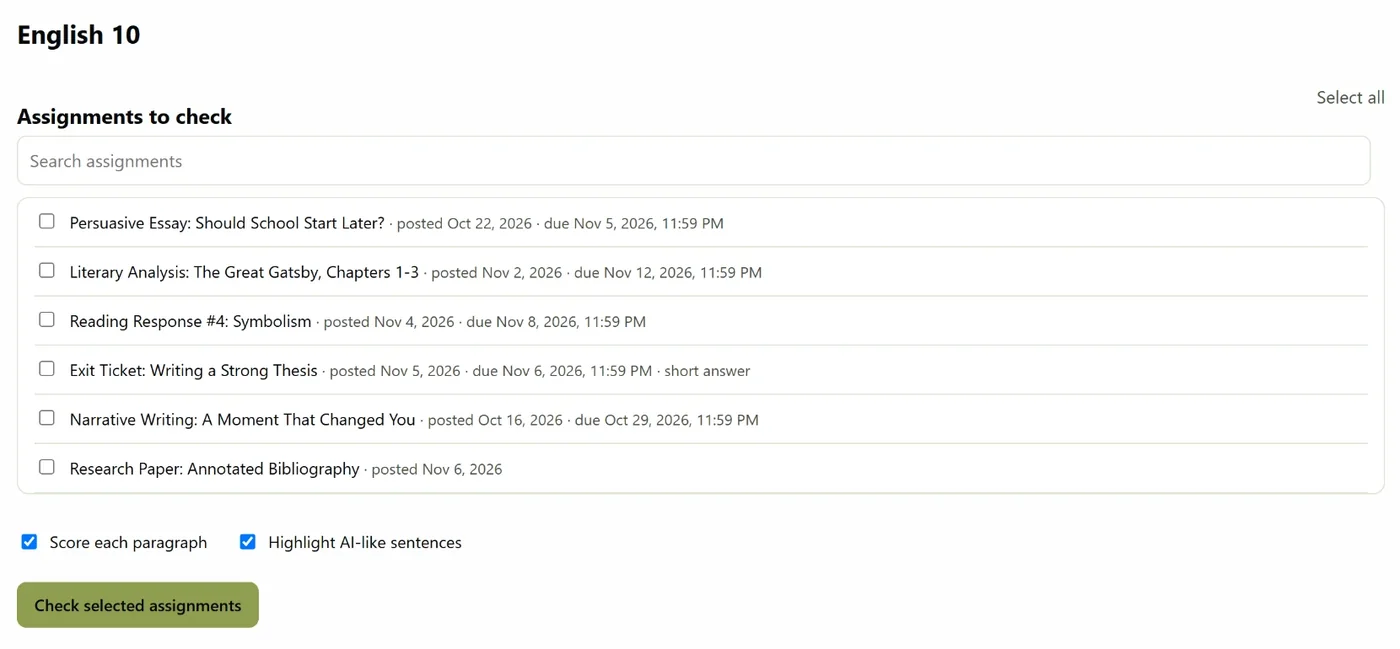
Pick the assignments to check.
Open a class and tick as many assignments as you like. Or stay in Google Classroom: our Chrome extension adds a Scan for AI button, opens on the class you're looking at and preselects the assignment.
- Search assignments by title and see when each was posted and is due
- Choose whether to score every paragraph and highlight AI-like sentences
- School admins can install the extension for every teacher at once
Step 3
The scan runs on its own.
Grade Integrity reads each turned-in submission as text, straight from Classroom and the student's Google file, and checks it. A progress page shows how far along it is and turns into the report when it's done. You can close it and keep working; the report is saved either way.
- Only turned-in work is checked
- Assignments nobody has turned in yet are skipped, and the report says so
Step 4
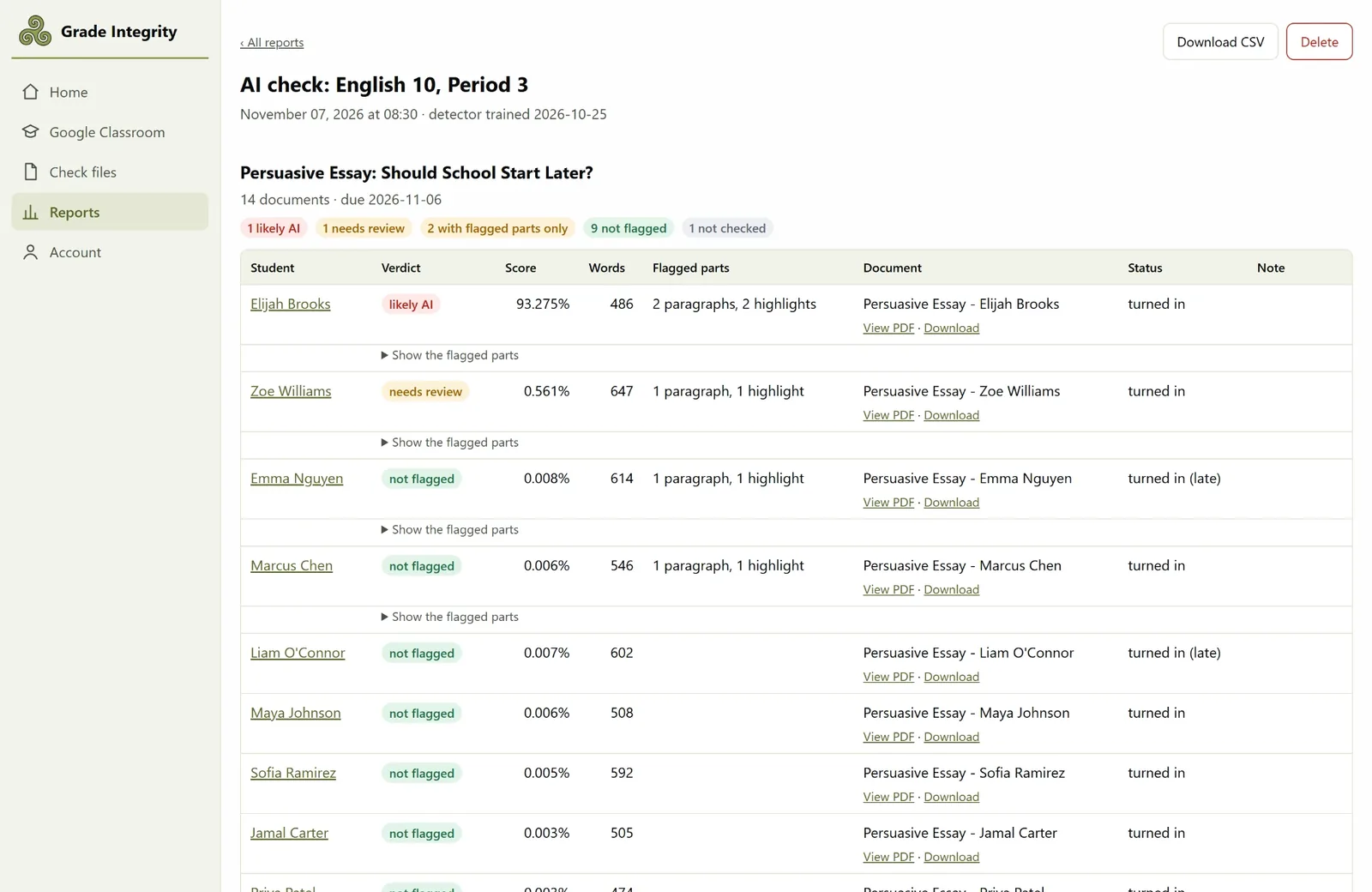
Read the report, top to bottom.
Every student appears with a verdict, a score, a word count, the number of flagged paragraphs and highlights, and whether the work was late. The submissions most worth a closer look come first.
- A summary line for each assignment: how many in each verdict
- Download the whole report as a CSV
Step 5
Open any submission to see what stood out.
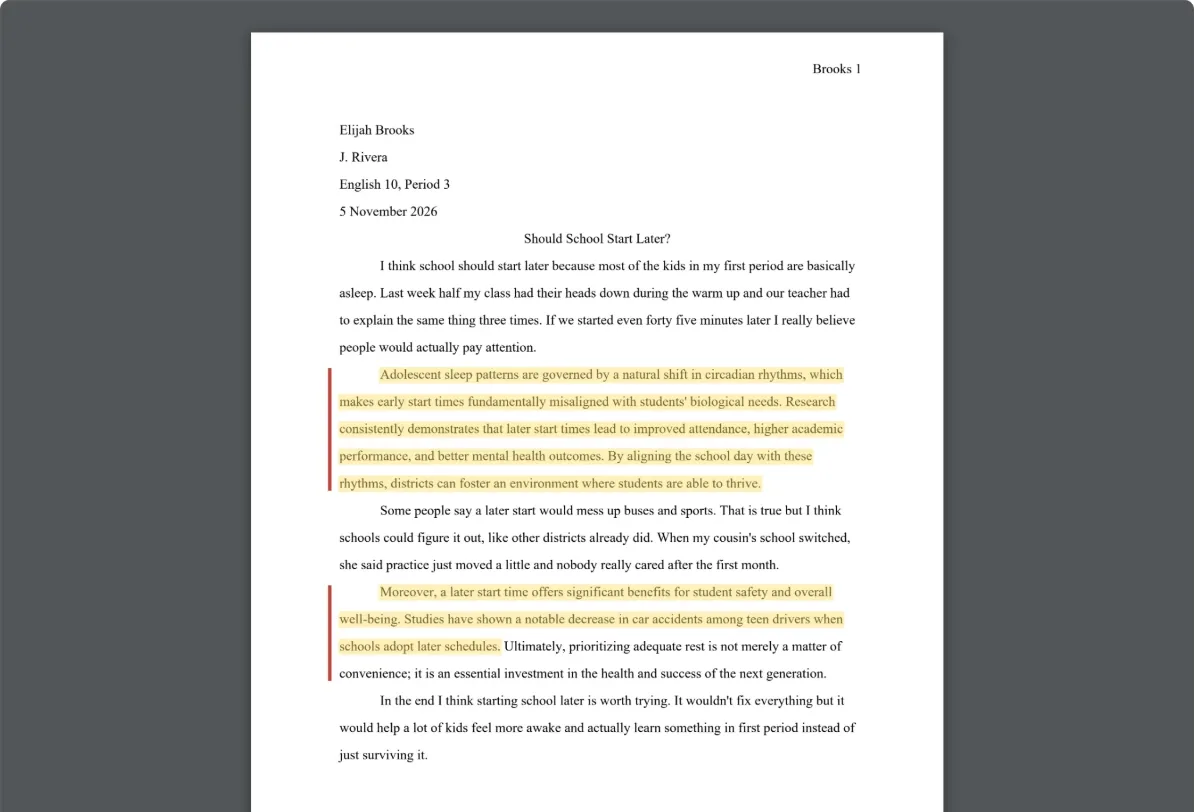
Expand a student to see their document with the AI-like passages highlighted in place. PDFs and Word files keep their original look. The flagged paragraphs are listed underneath with their scores.
- View the highlighted PDF in the browser or download it
- A marker in the margin shows each flagged paragraph
Step 6
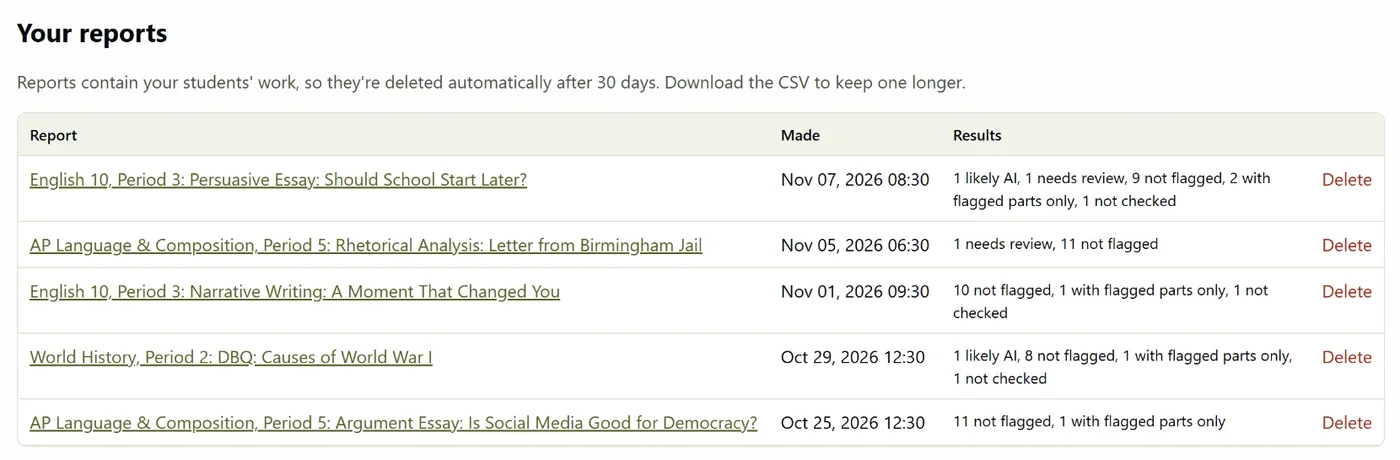
Keep it as long as you need. Then it's gone.
Reports are saved to your account so you can come back to them, and deleted automatically after 30 days because they contain student work. Delete one sooner with a click.
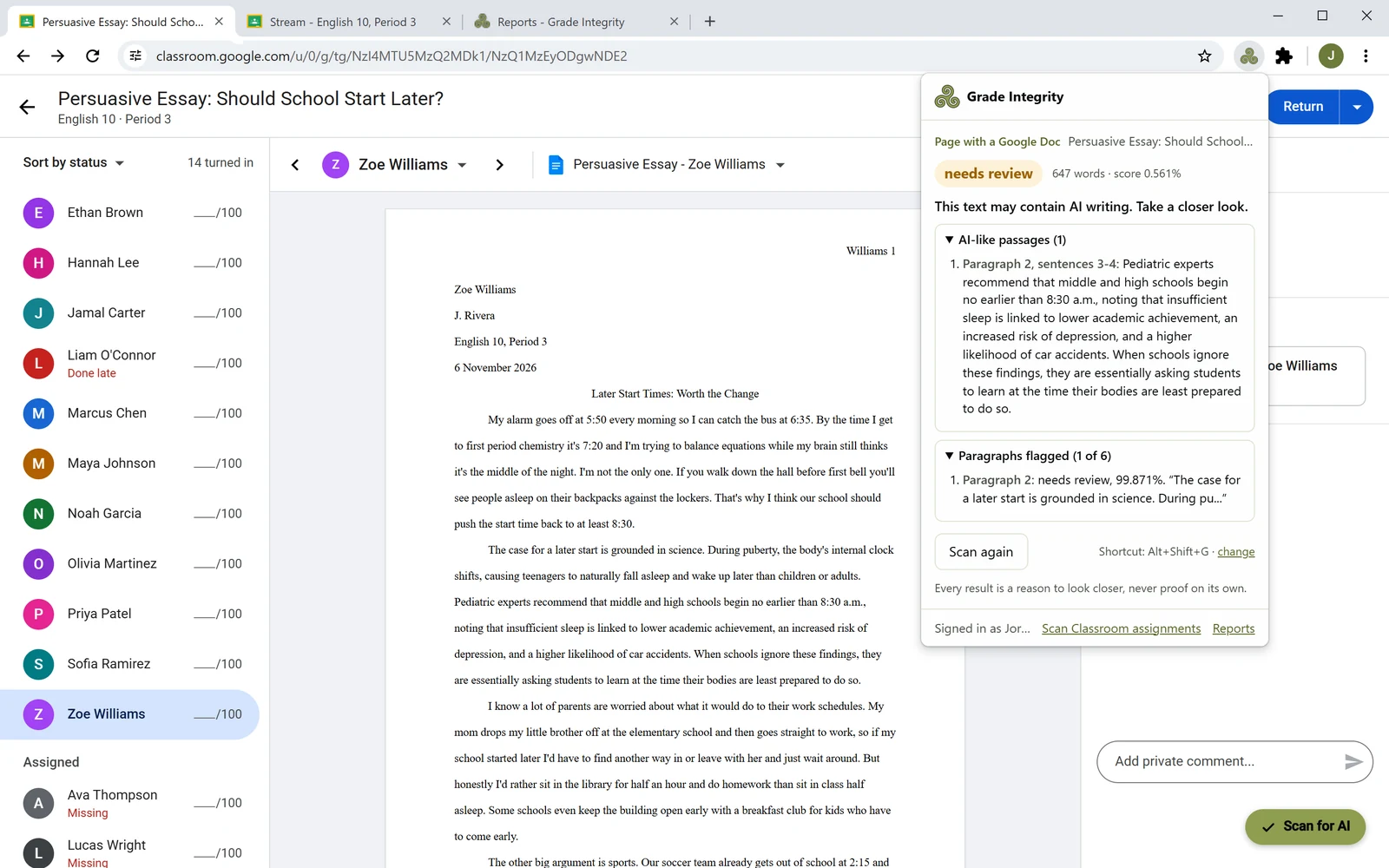
Or, on any page
Check the page you're on.
Open a student's Google Doc, a Google Slides deck or any web page, then click the Grade Integrity extension or press Alt+Shift+G (Control+Shift+G on a Mac). It reads the text on that page, checks it and shows the verdict right there, with any flagged paragraphs and AI-like passages.
- Reads every slide in a deck, not just the ones on screen
- Works on a student's Doc in Classroom's grading view too
- No Google connection needed. Nothing is saved: no report and no copy of the text
What the verdicts mean
Five plain answers, in order of how much they need you.
The submission as a whole scores above the higher cutoff. This is the strongest signal Grade Integrity gives, and still a reason to look, not a conclusion.
Above the lower cutoff. Something in the writing resembles AI text enough to be worth a read.
The submission as a whole reads as human, but a paragraph scored high or a sentence was highlighted, as you'd see when one section was pasted in.
Nothing stood out. It doesn't prove a person wrote it, only that the detector found no strong sign of AI.
There was no text to read, for example an empty document or a scan of handwriting.
Each report lists the exact cutoffs behind its verdicts and the date the detector was trained.
How it reads student work
Three levels of detail, from the whole submission to a single sentence.
The whole submission
The detector learned from real grade 6–12 student writing from before ChatGPT existed, and from what today's AI models write for the same assignments. It scores the complete text; short answers get their own scale.
Every paragraph
Each paragraph gets its own score, so a single AI-written section stands out even when the rest of the work is the student's own.
Single sentences
Runs of sentences that read like AI are highlighted on the document itself, so you know exactly where to start reading.
What it can check
The work your students already turn in.
Essays, lab reports, research papers, DBQs, reading responses and short answers, in any subject. There's no new workflow for students: Grade Integrity reads submissions where they already are.
Checks
- Google Docs, Slides and Sheets attached to Classroom submissions
- Word (.docx), PDF and text files students uploaded to Classroom, once you choose them in Google's file picker
- Classroom short-answer questions
- Word (.docx), PDF and plain-text files you upload, up to 50 at a time
- Text you paste in
- A Google Doc, Slides deck or web page you have open, with the extension
Can't check
- Multiple-choice questions
- Handwriting or scanned images with no text in them
- Work that hasn't been turned in
- Writing in languages other than English
Before you rely on it
Every result is a reason to look closer, never proof on its own.
It will sometimes be wrong
About 1 in 30 pieces of clean student writing gets a highlight somewhere. Treat a highlight as a hint about where to look, not as evidence.
Polished writing gets flagged more
Students who run their work through grammar tools are flagged more often. Keep that in mind before drawing conclusions.
Try it on work you know first
Check some work you know is human, like last year's assignments or your own writing, to get a feel for the results with the kinds of assignments you give.
Talk to the student
Compare with their earlier work, ask about their process, look at the document's version history. The decision is always yours.
See it on your own class.
Free for 14 days. No card needed. Sign in with your school Google account and check a whole class in minutes.