 Grade Integrity
Chrome extension
Check any assignment, on any page.
Wherever your students' work is, a Google Doc, a Slides deck, Classroom's grading view or any web page, click Grade Integrity or press Alt+Shift+G. The verdict appears right there, with the passages worth a second look. In Classroom, the Scan for AI button checks whole assignments at once.
- Free to install
- Works with your Grade Integrity account
- Reads a page only when you click it
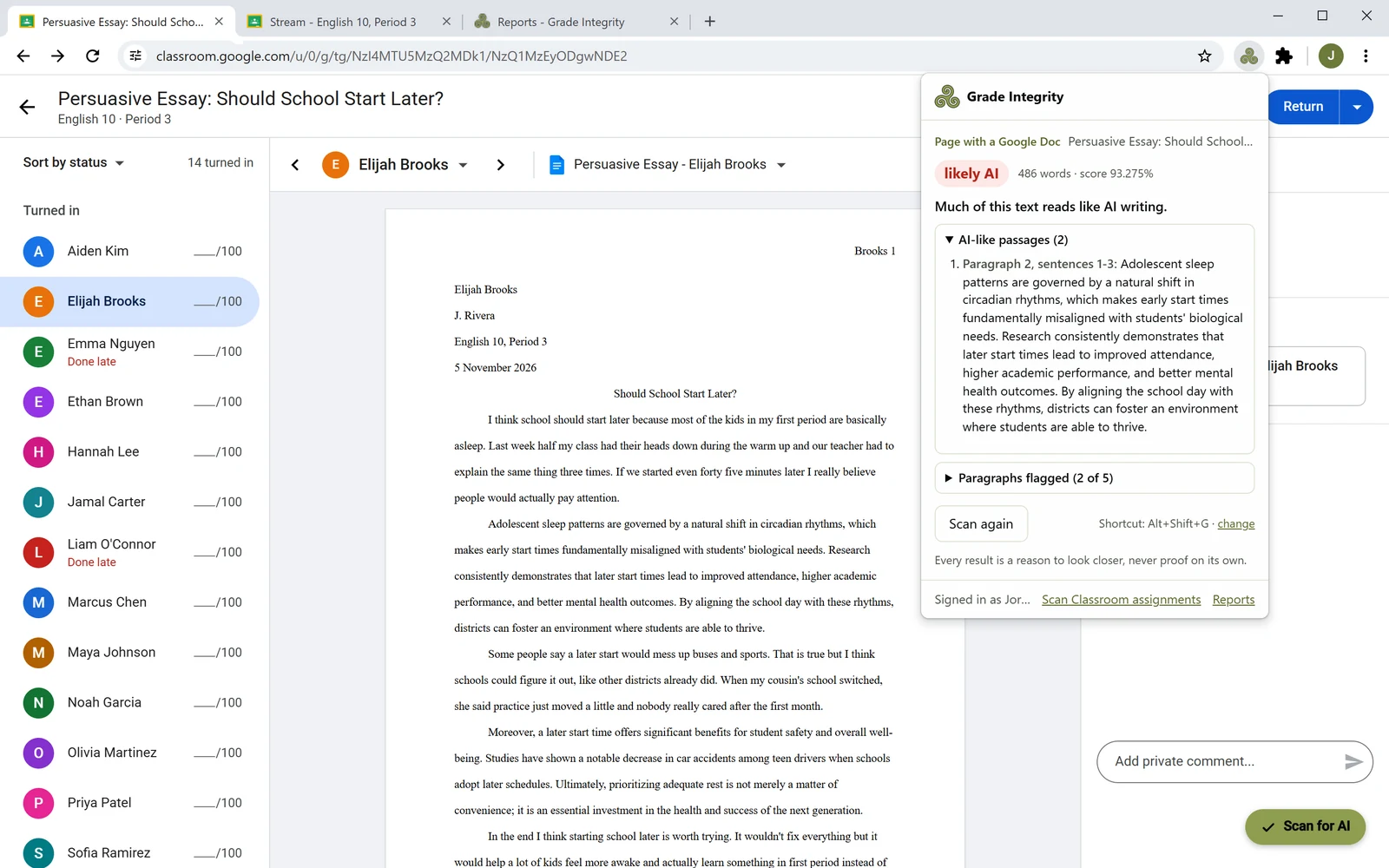
In the grading view
Go through the class one student at a time.
Use Classroom's arrows to open the next student, click the extension or press Alt+Shift+G (Control+Shift+G on a Mac), and read their result next to their work. No copying, no pasting, no second tab.
- A verdict and a score for the whole piece of writing
- Paragraph scores and the AI-like passages, quoted so you can find them on the page
- Go back to a student and their last result comes straight back
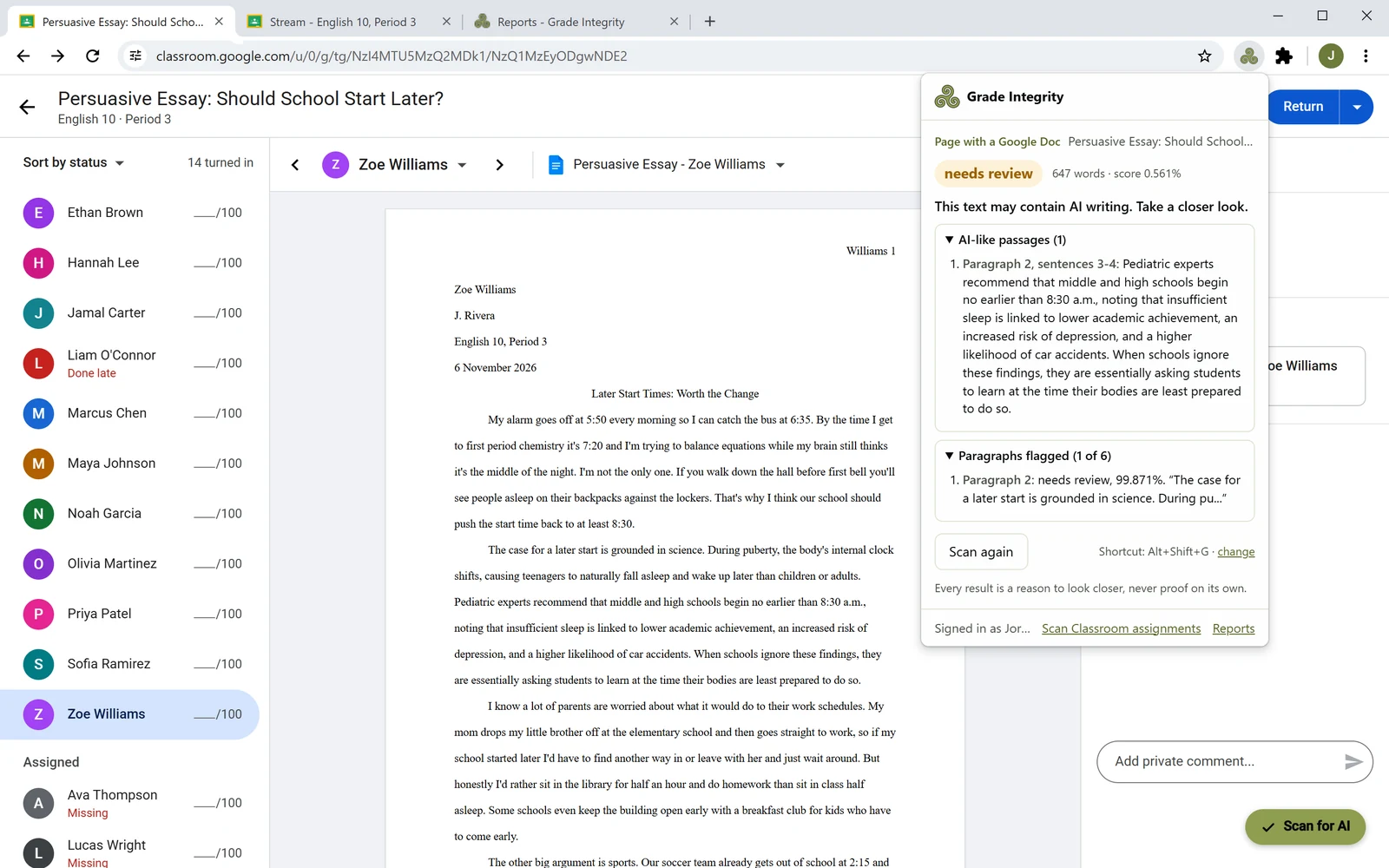
When it's the student's own work
A clear answer, so you can move on.
When a student's writing doesn't read like AI, the extension says so plainly. Spend your time on the submissions that deserve a closer read, not on second-guessing the rest.
- Every result is a reason to look closer, never proof on its own
- The same checks and cutoffs as a full Grade Integrity report
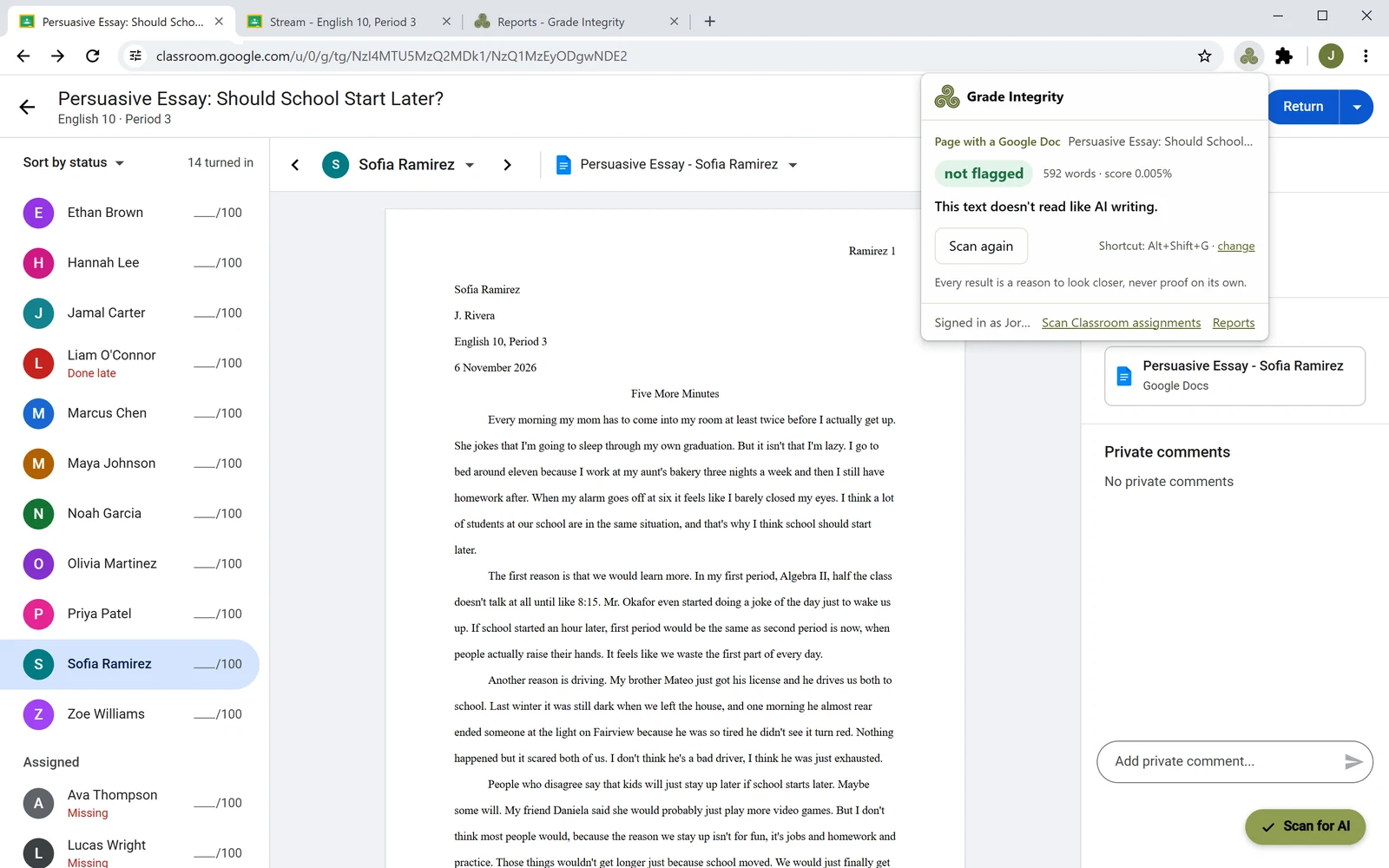
A whole assignment at once
Scan for AI, right inside Classroom.
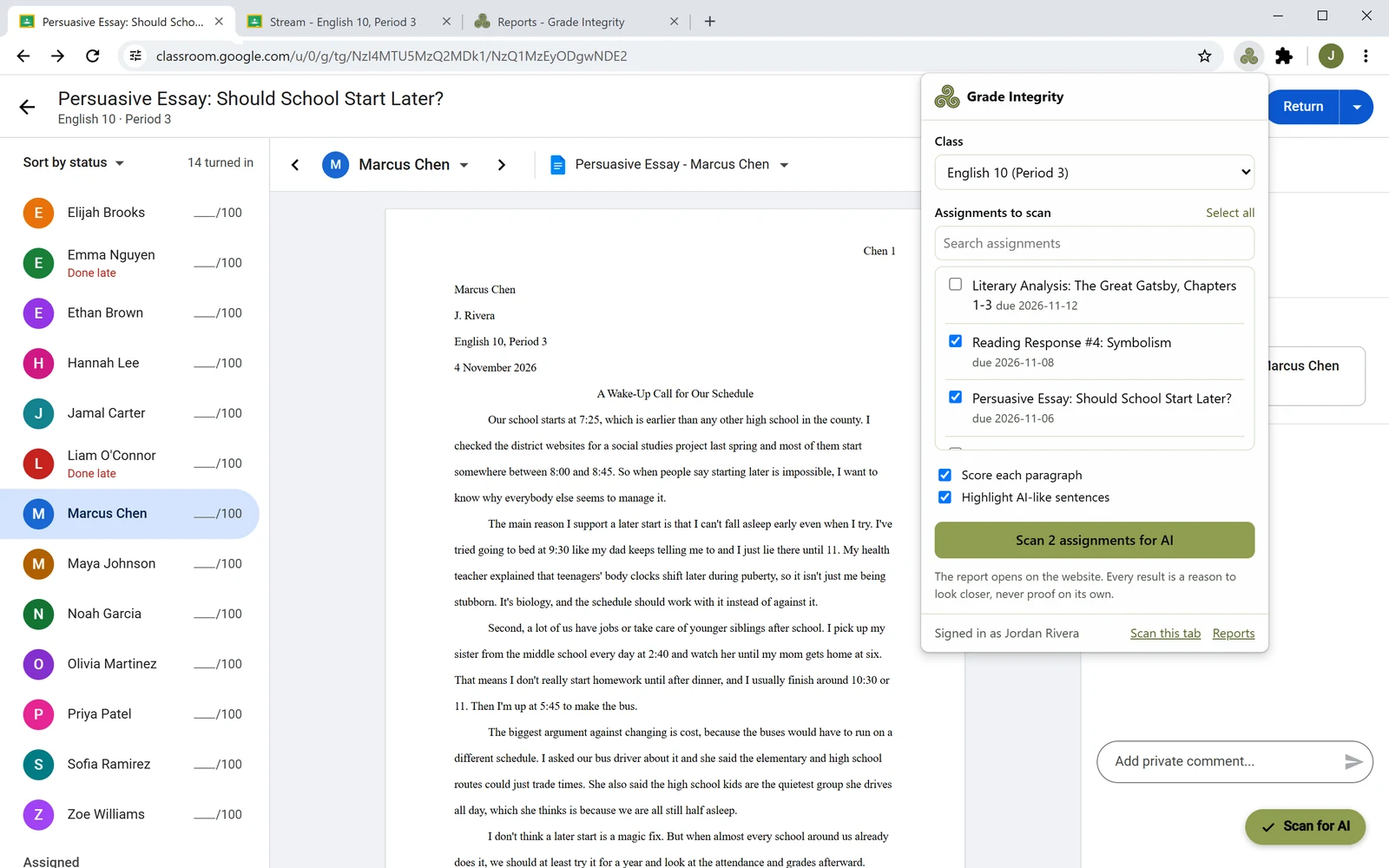
The Scan for AI button sits at the bottom right of every Classroom class and assignment page. It opens on the class you're in with that assignment already ticked. Add more if you like, and the full report opens on Grade Integrity.
- Search assignments and see when each one is due
- Score every paragraph and highlight AI-like sentences
- The report highlights passages on each student's own document
Privacy
It reads only what you ask it to.
The extension doesn't watch what you do. It reads a page when you click it, and the Classroom button only needs to know which class you're in.
Only the tab you click
It reads a page only when you click the extension or press its shortcut, and only that tab.
Nothing saved from a page
The page's text is checked and the result comes straight back. No report is made and no copy is kept.
No password in the extension
It uses your Grade Integrity sign-in, the same way a browser tab does.
The Classroom button reads one thing
The page's address, to know which class and assignment you're on. Nothing else on the page.
Docs, Slides and any page
It reads a Google Doc in the grading view, every slide in a deck (not just the ones on screen), or any web page.
Your admin can install it
Google Workspace admins can install it for every teacher at once. For schools
Get started
Up and running in a minute.
-
1
Add it to Chrome
Install it from the Chrome Web Store, or your school's Google admin installs it for you.
-
2
Sign in to Grade Integrity
Checking the page you're on needs only a sign-in. Connect Google Classroom to scan whole assignments.
-
3
Click it on any student's work
Or press Alt+Shift+G. In Classroom, use the Scan for AI button to check whole assignments.
Try it on your next assignment.
Free for 14 days. No card needed. Sign in with your school Google account and check a whole class in minutes.